Before we go into deep with PDF reports it's important to explain how this process of generating this kind of reports takes place in ProReports. In section Template of each element you have to use special markup language (list of available markers can be found here) that is very similar to HTML.
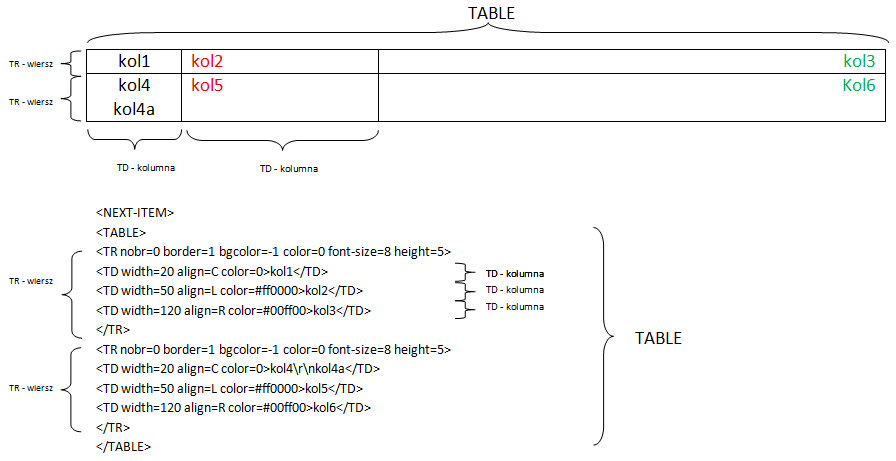
When creating this markup language we assumed that every element put in PDF document is a table, more specifically it can be single row and single column table - in that case you can treat it as one line of text (when using attribute border=0 - display no frame). Another tables are separated from each other with a single line - unless in first row you use attribute nobr with value 1 (<TR nobr=1 ...) - in that case table that comes after the one that has set marker nobr=1, will be added to table with set marker.
Important!
In Template section next in line tables have to be divided by marker <NEXT-ITEM>.
Applying attributes palette you can influence row's or column's appearance (another field in row) having in mind that setting attribute <TR> in section reffers to every column in each row, unless in <TD> section of each column (field) you enter different value, e.g.:
<TR bgcolor=#ff0000>
  <TD width=30>first column</TD>
  <TD width=30 bgcolor=#00ff00>second column</TD>
  <TD width=30>third column</TD>

</TR>
In example above columns first and third will have red background color (inherited after row's settings) and second column will have green background.
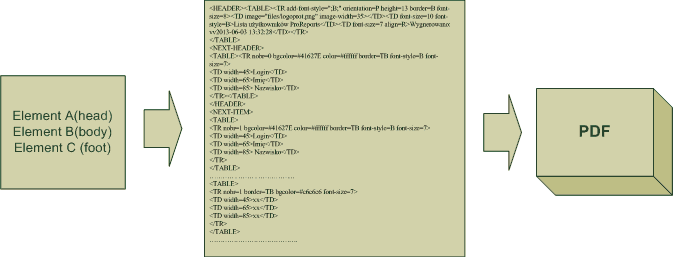
When registering Internal PDF report another elements are processed according to algorithm, as a result of what output file is created with structure compatible with markup language. Next this file is converted to PDF format.
Exemplary Internal PDF report - option A
You want to create simple report (similar to report from example Raport Internal TXT), that is based on internal database of ProReports system will generate *.pdf file with list of users defined in system:
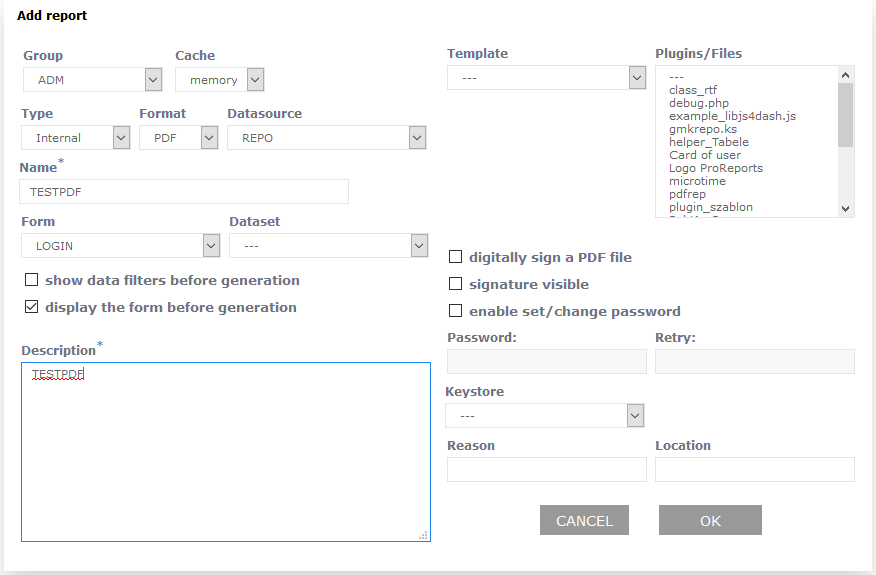
In first step you have to register report choosing report type Internal and format PDF. You user previously prepared form LOGIN.
Next you have to register elements of a report:
| Section | Value |
|---|
| Symbol | A |
| Type | HEAD |
| Weight | 0 |
| Parent | --- |
| Description | Defining variables types_description, login and date |
| SQL | |
| Expression/Code before Template |
global $login;
$V[login]=$login ;
$V[types_description]=array("K"=>"Coordinator",
"U"=>"User","A"=>"Administrator","M"=>"Manager");
$V[data]=date("Y-m-d H:i:s");
|
| Template |
<HEADER>
<TABLE>
<TR add-font-style=";B;"  orientation=L foot-text=Page{cb}_of_{nb} foot-align=C foot-space=0 height=6 border=MB font-size=10>
<TD image="files/logoprot.png" image-width=35></TD>
<TD font-style=B font-size=10>User sheet</TD>
<TD font-size=7 align=R>Generated:$V[data]\r\nOperator: $V[login]</TD>
</TR>
</TABLE>
<NEXT-HEADER>
</HEADER>
|
| Expression/Code after Template | |
| Section | Value |
|---|
| Symbol | B |
| Type | BODY |
| Weight | 1 |
| Parent | --- |
| Description | User types selection |
| SQL | select distinct typ as type from ge_users WHERE login like "$P[Login]" |
| Expression/Code before Template | $type=$F[B_type];
$V[description]=$V[types_description][$type];
$V[counter]=0;
|
| Template |
<NEXT-ITEM>
<TABLE>
<TR nobr=1 hdlink=2 border=0 bgcolor=-1 color=#ff0000 font-style=B font-size=10 height=5>
<TD width=120 align=L>$F[B_type] - $V[description]</TD>
</TR>
</TABLE>

<NEXT-ITEM>
<TABLE>
<TR nobr=0 border=1 bgcolor=220 color=0 font-style= font-size=8 height=5>
<TD width=30 align=C color=0>Login</TD>
<TD width=60 align=C color=0>First Name and Surname</TD>
<TD width=40 align=C color=0>City</TD>
</TR>
|
| Expression/Code after Template | |
Variable $V[counter] was created to count number of users given type.
- element C (this element is in child relation to element B)
| Section | Value |
|---|
| Symbol | C |
| Type | BODY |
| Weight | 0 |
| Parent | B |
| Description | User types selection |
| SQL | SELECT * FROM ge_users WHERE typ="$F[B_type]" and login like "$P[Login]" |
| Expression/Code before Template | $V[counter]+=1; |
| Template |
<TR nobr=0 border=1 bgcolor=-1 color=0 font-style= font-size=8 height=5>
<TD color=0 align=C>$F[C_login]</TD>
<TD color=0 align=L>$F[C_forename] $F[C_surname]</TD>
<TD color=#0000ff align=R>$F[C_city]</TD>
</TR>
|
| Expression/Code after Template | |
- element D (this element is in child relation to element B)
| Section | Value |
|---|
| Symbol | D |
| Type | FOOT |
| Weight | 1 |
| Parent | B |
| Description | Table ending |
| SQL | |
| Expression/Code after Template | |
| Template |
</TABLE>Record number: <B>$V[counter]</B> |
| Expression/Code after Template | |
At the end of table we want to show users of given type (variable $V[counter]).
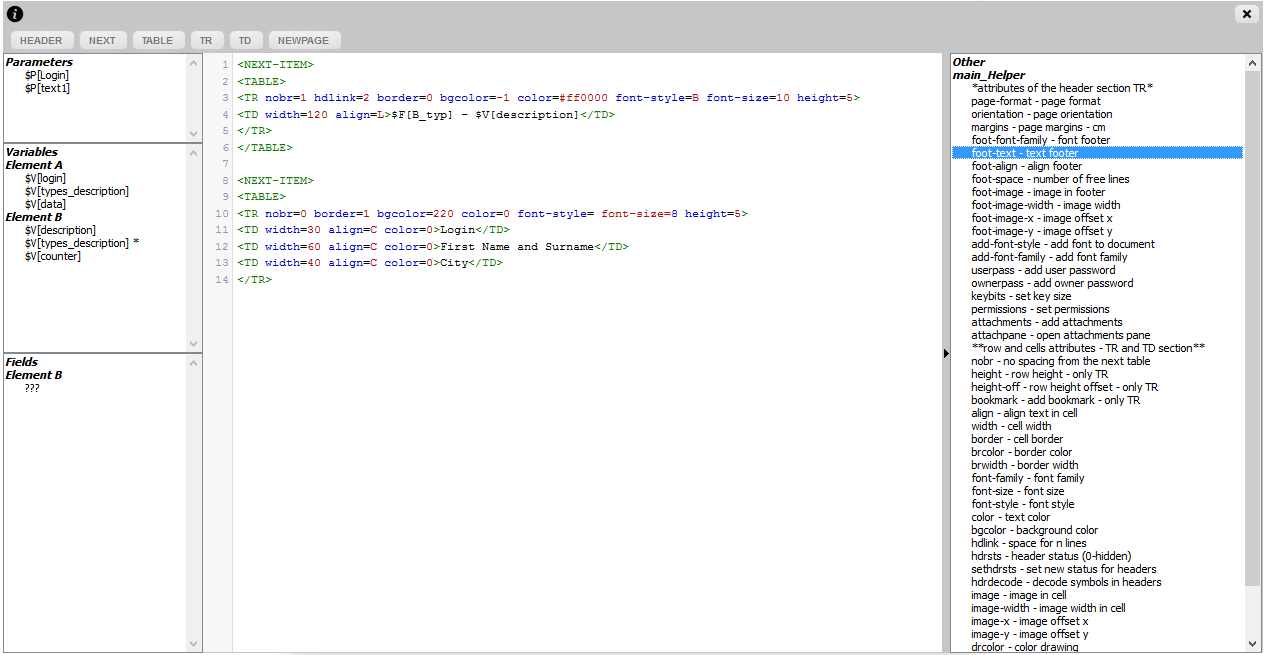
When registering elements it's suggested to use zoom edit window icon ( ), because in this windows where are available useful snippets/helpers that speed up using markup language:
After selecting market/attribute either from list or from menu fragments that's linked with it will be inserter in current cursor's position, e.g. clicking menu option HEADER you can insert whole section that defines default report header.
Info!
It's worth notifying that when creating your own plugin (here you can read more on it) you can define inside it your own snippets/helpers and decide in which sections and in what way they will be displayed on edit window.
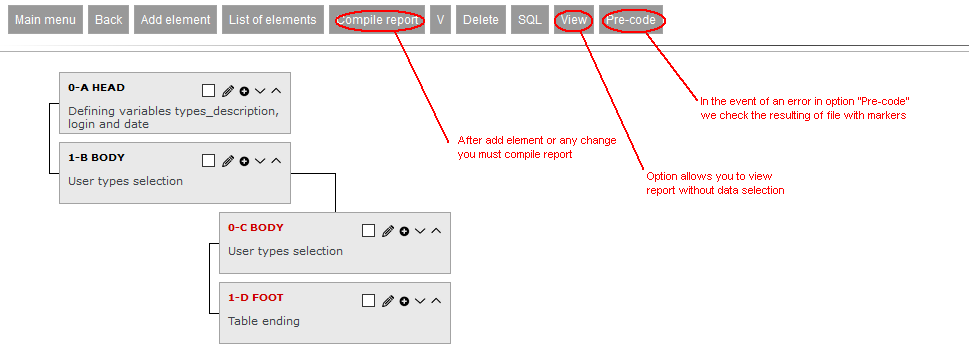
Registered elements are displayed in list according to hierarchy:
After registering elements you have to perform compilation of report using Compile report button.
Important!
You have to compile report after any change performed on report element. If you don't do that report will be generated basing on previous setting (changes won't be applied).
After compiling report thanks to View option you can check how more-less the PDF report will look like.
This option can be useful when you are preparing report without access to target data source.
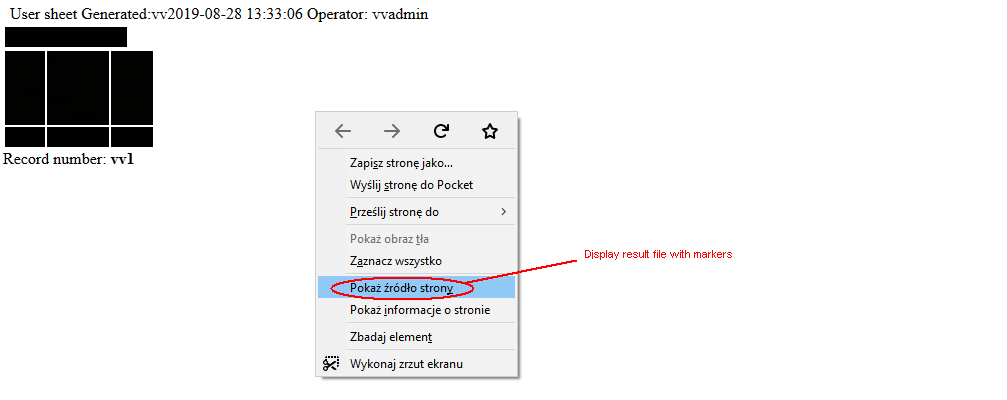
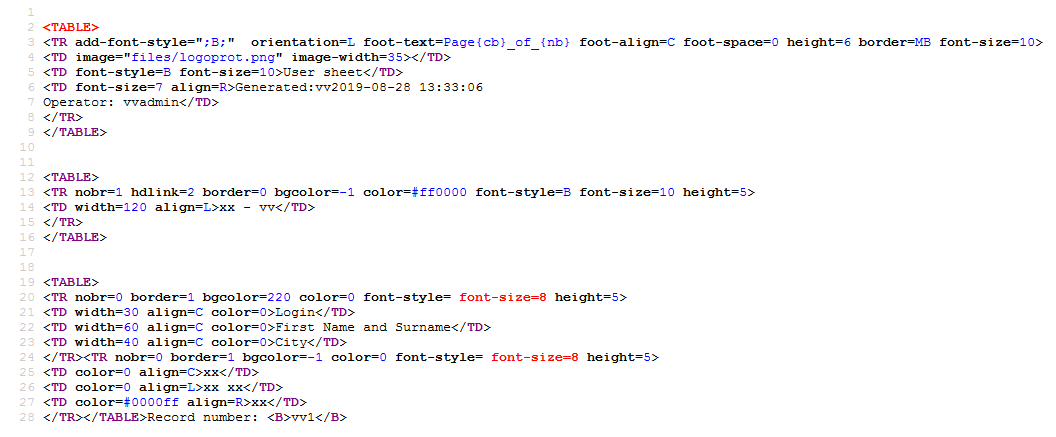
If there is a problem with generating PDF file in option View, you can use Precode option, that presents indirect output file to determine cause of the problem, e.g. syntax error of PHP code input in following sections: Expression/Code before Template and Expression/Code after Template. Considering that markup language is similar to HTML code browser presents output file as regular WWW site. To see actual file content you have to right-click in opened windows and from context menu choose Show source.
Notice that output file doesn't show markers <HEADER, <NEXT-HEADER> and <NEXT-ITEM>:
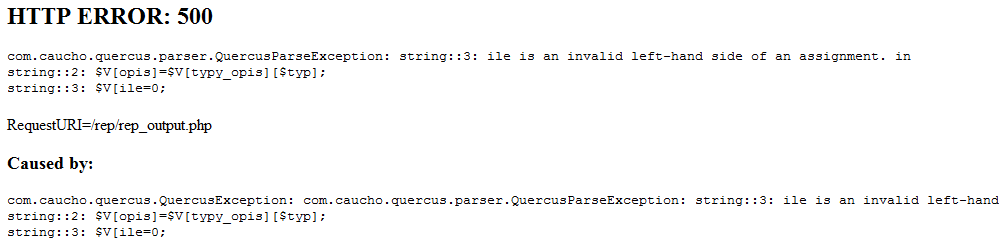
If during creating a report you made a mista then using Precode function instead of output file can show you information about it:
In this case issue is lack of ] when setting variable $V[counter].
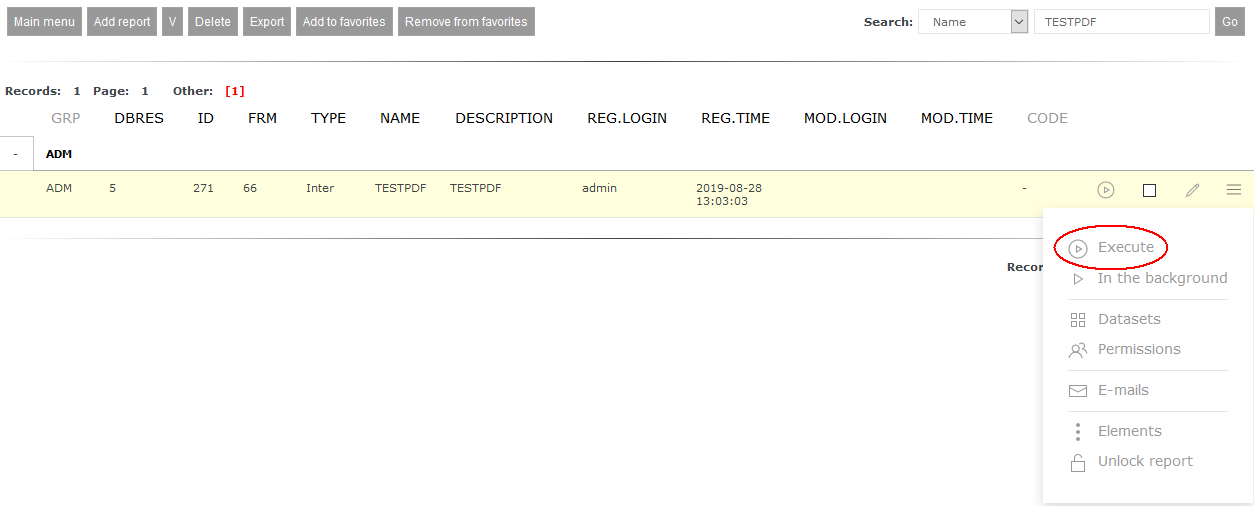
Ifter compiling report you can run it choosing from menu option Execute:
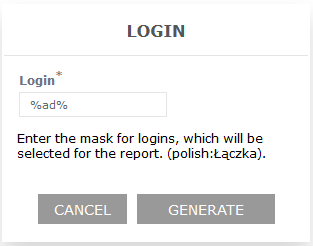
Before actual generation there will be showed form that in linked with the report:
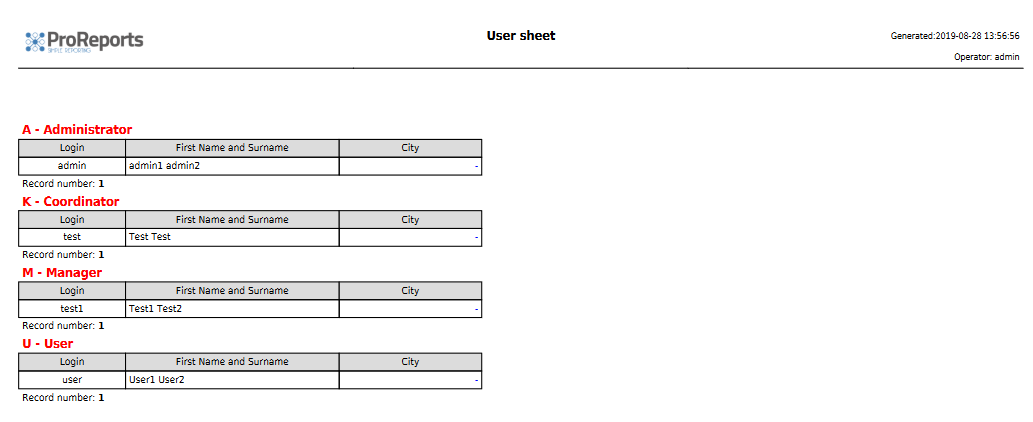
Using Generate button starts report generation process giving *.pdf file as a result:
Exemplary Internal PDF report - option B
Now we want to change previously generated report in a way that every table with certain user type will be generated at the top of new page.
| Section | Value |
|---|
| Symbol | A |
| Type | HEAD |
| Weight | 0 |
| Parent | --- |
| Description | Defining variable types_description, login and date |
| SQL | |
| Expression/Code before Template |
global $login;
$V[login]=$login ;
$V[types_description]=array("K"=>"Coordinator",
"U"=>"User","A"=>"Administrator","M"=>"Manager");
$V[date]=date("Y-m-d H:i:s");
$V[page]=0 ;
|
| Template |
<HEADER>
<TABLE>
<TR add-font-style=";B;"  orientation=L foot-text=Page_{cb}_of_{nb} foot-align=C foot-space=0 height=6 border=MB font-size=10>
<TD image="files/logoprot.png" image-width=35></TD>
<TD font-style=B font-size=10>User list</TD>
<TD font-size=7 align=R>Generated:$V[date]\r\nOperator: $V[login]</TD>
</TR>
</TABLE>
<NEXT-HEADER>
</HEADER>
|
| Expression/Code after Template | |
In element A is defined additional variable $V[page] with value set to 0'.
| Section | Value |
|---|
| Symbol | B |
| Type | BODY |
| Weight | 1 |
| Parent | --- |
| Description | User types selection |
| SQL | select distinct typ as type from ge_users WHERE login like "$P[Login]" |
| Expression/Code before Template | $type=$F[B_type];
$V[description]=$V[types_description][$type];
$V[counter]=0;
|
| Template |
|
| Expression/Code after Template | |
Element B doesn't have section Template, filled that will be moved to new element: Bb. However before element Bb you need to register conditional elements Ba (child to B):
| Section | Value |
|---|
| Symbol | Ba |
| Type | IFTHEN |
| Weight | 0 |
| Parent | B |
| Description | Check if $V[page]>=1 |
| SQL | |
| Expression/Code before Template |
($V[page]>=1) ? $status=1: $status=0 ;
|
| Template |
|
| Expression/Code after Template | |
and another element Baa which Template section is processed when following condition is met: $V[counter]>=1:
| Section | Value |
|---|
| Symbol | Baa |
| Type | BODY |
| Weight | 0 |
| Master element | Ba |
| Description | Pass to next site nobr=2 |
| SQL | |
| Expression/Code before Template |
|
| Template |
<NEXT-ITEM>
<TABLE>
<TR nobr=2 border=0 bgcolor=-1 color=0 font-style= font-size=3 height=2>
<TD width=20 align=C color=0> </TD>
</TR>
</TABLE>
|
| Expression/Code after Template | |
Adding table that doesn't doesn't display any elements (empty section<TD>) and setting inside it attribute nobr=2 leads to moving to new page. It's worth noting that for rows in this table was set minimal attribute of following values font-size and height. It leads to table taking minimum space in PDF document. If you want number consecutive pages starting from 1 you need to set nobr=3 attribute.
| Section | Value |
|---|
| Symbol | Bb |
| Type | HEAD |
| Weight | 1 |
| Parent | B |
| Description | |
| SQL | |
| Expression/Code before Template |
|
| Template |
<NEXT-ITEM>
<TABLE>
<TR nobr=1 hdlink=2 border=0 bgcolor=-1 color=#ff0000 font-style=B font-size=10 height=5>
<TD width=120 align=L>$F[B_typ] - $V[description]</TD>
</TR>
</TABLE>

<NEXT-ITEM>
<TABLE>
<TR nobr=1 border=1 bgcolor=220 color=0 font-style= font-size=8 height=5>
<TD width=30 align=C color=0>Login</TD>
<TD width=60 align=C color=0>First name and surname</TD>
<TD width=40 align=C color=0>City</TD>
</TR>
</TABLE> |
| Expression/Code after Template | |
Notice that in this case second header is a complete table, not like previously - just a row.
| Section | Value |
|---|
| Symbol | C |
| Type | BODY |
| Weight | 2 |
| Parent | B |
| Description | User choice |
| SQL | SELECT * FROM ge_users WHERE typ="$F[B_type]" and login like "$P[Login]" |
| Expression/Code before Template | $V[ile]+=1; |
| Template |
<NEXT-ITEM>
<TABLE>
<TR nobr=1 border=1 bgcolor=-1 color=0 font-style= font-size=8 height=5>
<TD width=30  color=0 align=C>$F[C_login]</TD>
<TD width=60  color=0 align=L>$F[C_surname] $F[C_surname]</TD>
<TD width=40 color=#0000ff align=R>$F[C_city]</TD>
</TR>
</TABLE>
|
| Expression/Code after Template | |
In element C change took place as well - consecutive data rows are processed to a table. To prevent diving table's elements nobr=1 attribute was set.
| Section | Value |
|---|
| Symbol | D |
| Type | FOOT |
| Weight | 3 |
| Parent | B |
| Description | Displayig number of records in given section |
| SQL | |
| Expression/Code before Template | $V[page]+=1; |
| Template |
<NEXT-ITEM>
<TABLE>
<TR nobr=0 border=0 bgcolor=-1 color=0 font-style= font-size=8 height=5>
<TD width=30 align=R color=0>Number of records:</TD>
<TD width=30 align=L font-style=B color=0>$V[counter]</TD>
</TR>
</TABLE>
|
| Expression/Code after Template | |
Notice that this element increments $V[page] variable thanks to what processing conditional element Ba will start. Which will allow to move to new page for every new user type.
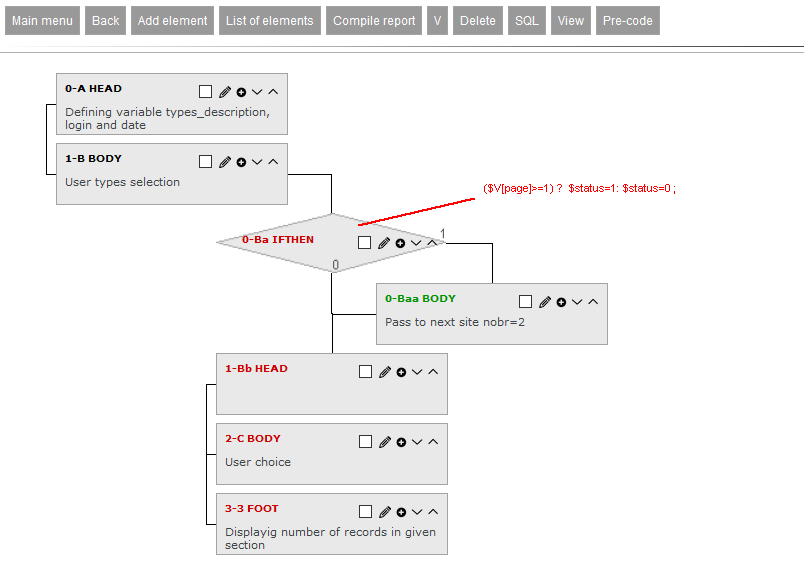
After registering elements in this case have have more complex structure:
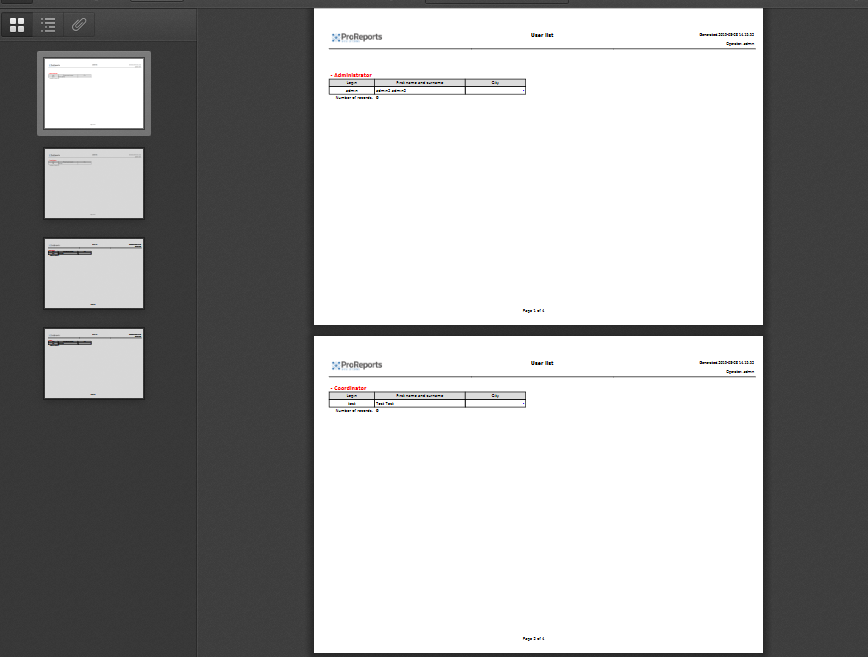
In this case after generating report we receive *.pdf file in which every section representing specified user type starts from new page: