
Respect my work! or BTC: 1MTFbBSKrocPK7G6GKfG8RoTw5N57WnnNa  If you have paid donate send me e-mail with Your data or transaction number to receive an access code to articles with limited access. |
PmWiki /
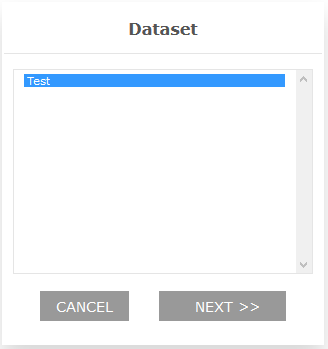
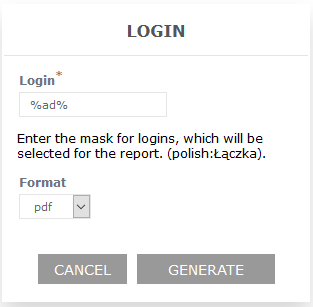
Defining datasetsFor defined in system reports was created possibility to save so called Datasets which allow for introductory filling form with earlier defined values (before generating report). Process of generating a report runs as follows: before form linked with report is shown, list on available datasets is presented. User has to choose one of them which leads to showing report form with initially filled fields. After form has been accepted report generation process begins. To register a dataset you have to open report list - Reports->List of reports and use option Datasets from choosen report's menu: 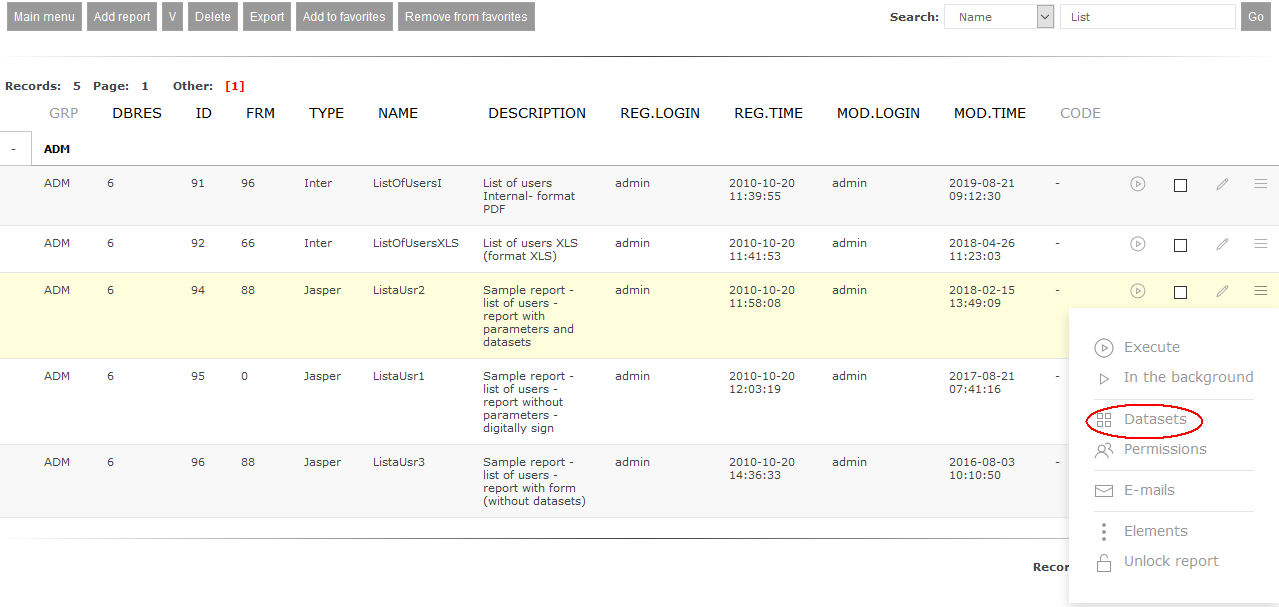 Then you will go to list of defined datasets:  Using key Add dataset you can add another record or you can click icon 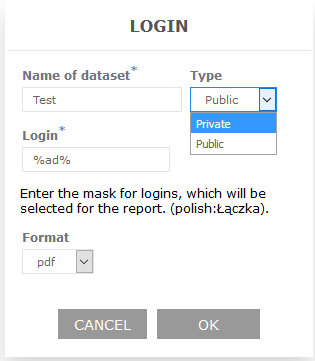 By defining private dataset we ensure that it will not be visible to other users of selected report. In other case entered datased will be available for every report user. After registering first set of data you have to edit report and mark parameters connected with datasets: 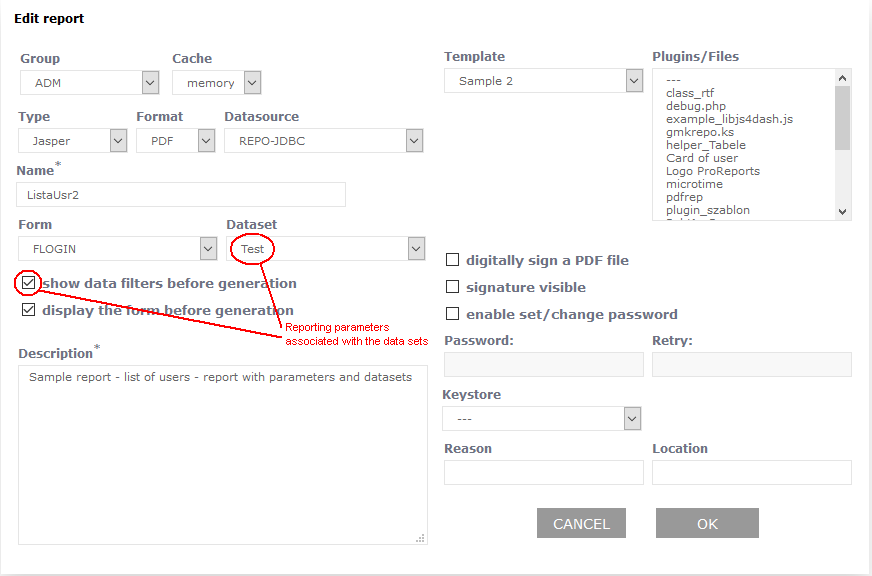 Important!
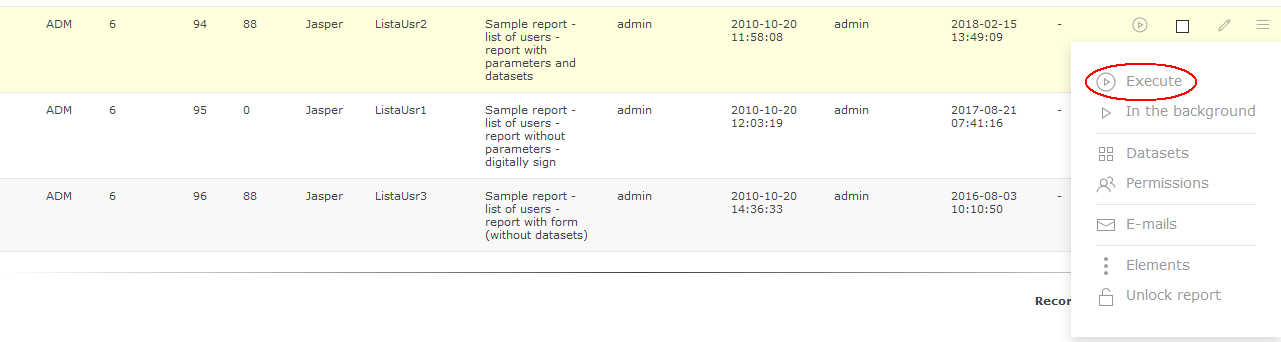
If you change dataset selected in Dataset field then this step (editing and saving) needs to be repeated if name of chosen set didn't change. If we won't do this default dataset selected in report will not be market on dataset list shown before report generation. Below is presented step-by-step process of selected dataset when generating a report:
 This page may have a more recent version on pmwiki.org: PmWiki:DefZestRep, and a talk page: PmWiki:DefZestRep-Talk. |
 to edit choosen dataset: