
Respect my work! or BTC: 1MTFbBSKrocPK7G6GKfG8RoTw5N57WnnNa  If you have paid donate send me e-mail with Your data or transaction number to receive an access code to articles with limited access. |
PmWiki /
Defining simple reportShortcut tableFor registration of the report, we can use option Simple reports->Add report or we can press buttom Add report in option Simple reports->List of reports.  Selecting one of these options to display a registration form report: 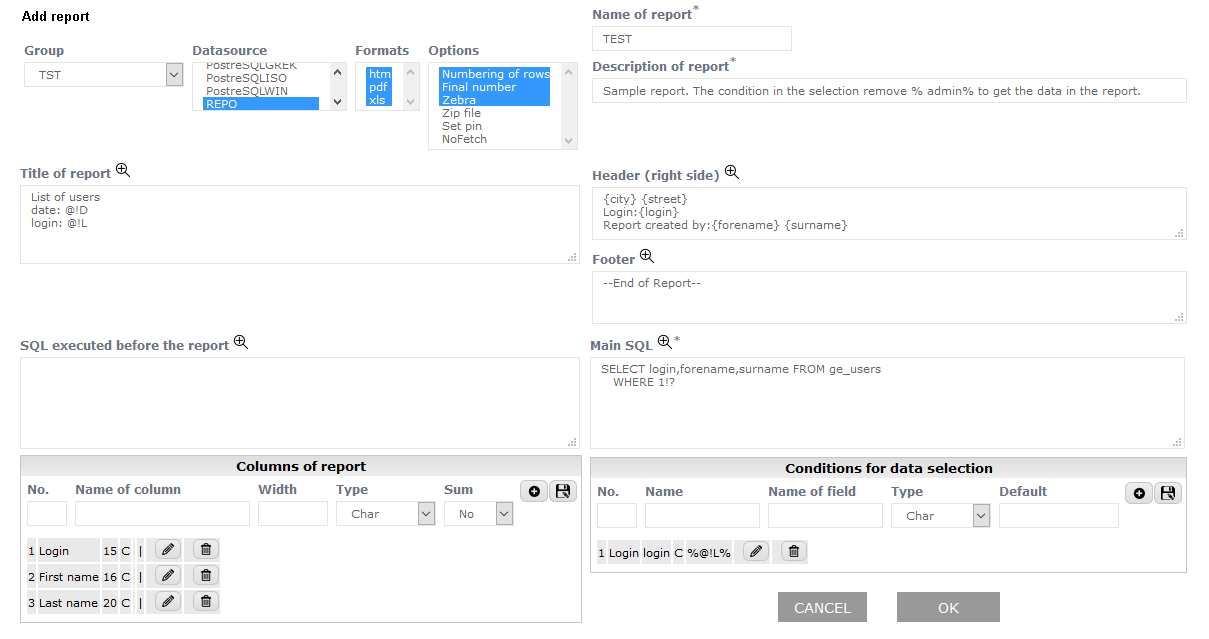 where you specify:
Important!
Procedure PL/SQL must return although one value ( for example: RETURN 1).
Defining fieldsShortcut tableImportant!
Number of columns defined in the report of the row must be in accordance with the number of fields shown in the main SQL query report. Adding columnTo register column in the report is section Columns of report. To register a column you must fill fields in this section:
and click icon Example: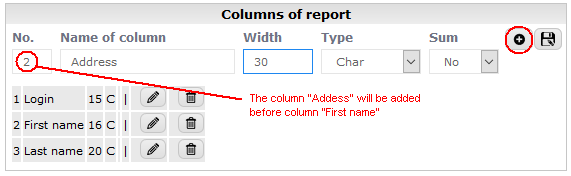 and after click of icon 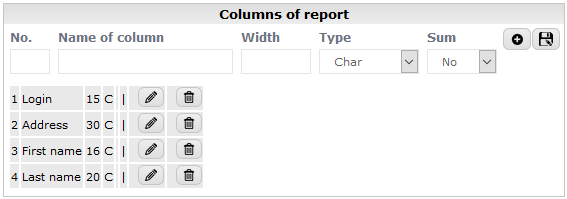 Important!
Any changes made in the report column with line service will eventually be saved after saving the entire report. If the changes made to withdraw the report columns without saving, all changes will be lost and the report will have previous form. As a result, if we decide that we want to withdraw from the changes made to the columns, we can do that withdrawing from editing the whole report. Editing columnIf you wish to pre-defined column to edit, we need to click on the icon 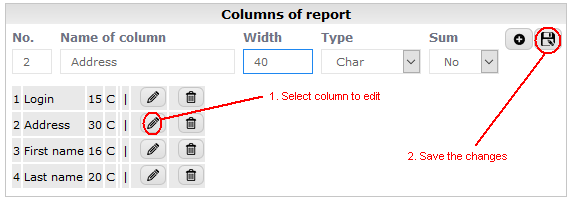 Saving changes after you click on the icon 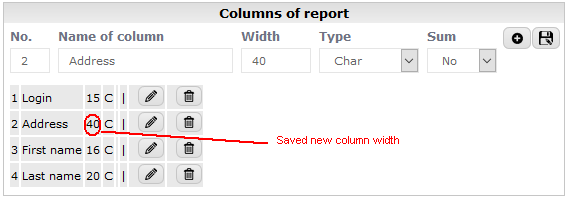 Deleting columnTo delete a previously registered column, use the icons 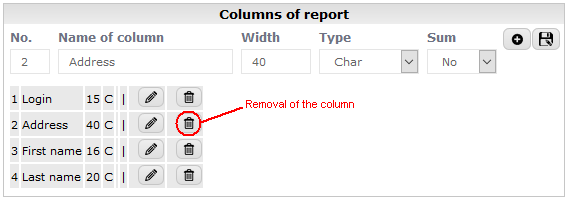 Defining conditions for data selectionShortcut tableThe selection criteria defined in the report row can reduce the scope of selected data. Each condition is available as symbols and can be used in the Main SQL of report. Selection conditions can be referenced in two ways:
Example: In the case below: 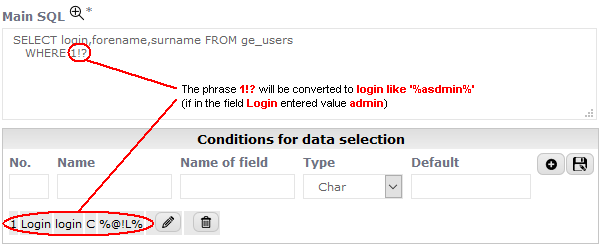 before the generation of the report displays the form: 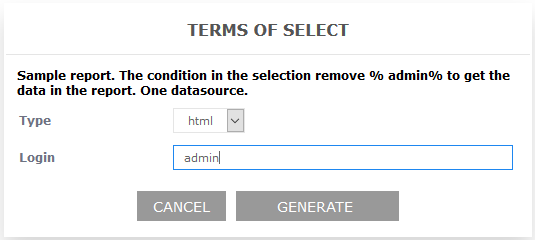 and SQL will be as follows: SELECT login,forename,surname FROM ge_users WHERE login like "%admin%" This page may have a more recent version on pmwiki.org: PmWiki:DefRepLine, and a talk page: PmWiki:DefRepLine-Talk. |
 . Then the column definition will be added to the list at the end. If we have defined several columns and we want to add a column between two already defined, it should be in field No enter the number of columns before that we want to put a new column:
 in the row you want to edit:
 :
:
 in the row you want to delete: