
Respect my work! or BTC: 1MTFbBSKrocPK7G6GKfG8RoTw5N57WnnNa  If you have paid donate send me e-mail with Your data or transaction number to receive an access code to articles with limited access. |
PmWiki /
Registering reportShortcut tableIn ProReports system you can register three types of report: Registering report of type JasperAfter importing *.jrxml files and defining r#jasper4|form]] containing input elements you can start defining report in ProReports system. To achieve that you can use following option: Reports->Add report or by pressing New report button in option Reports->List of reports 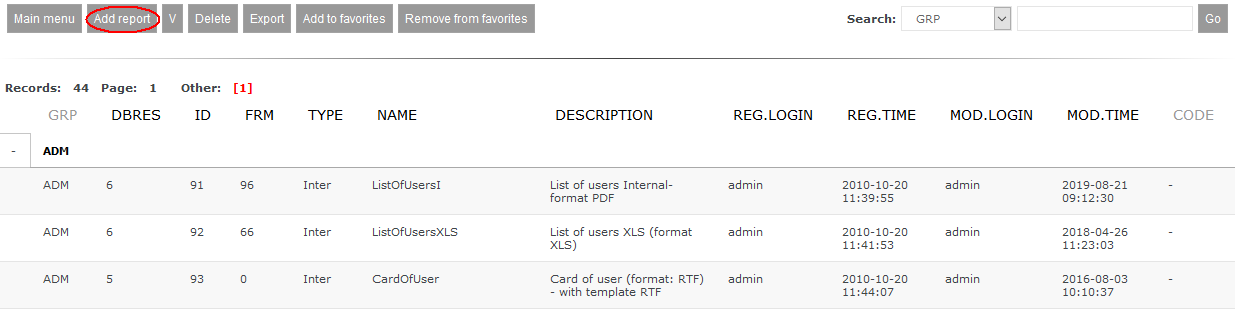 Choosing one of the above options will display form to register a report: 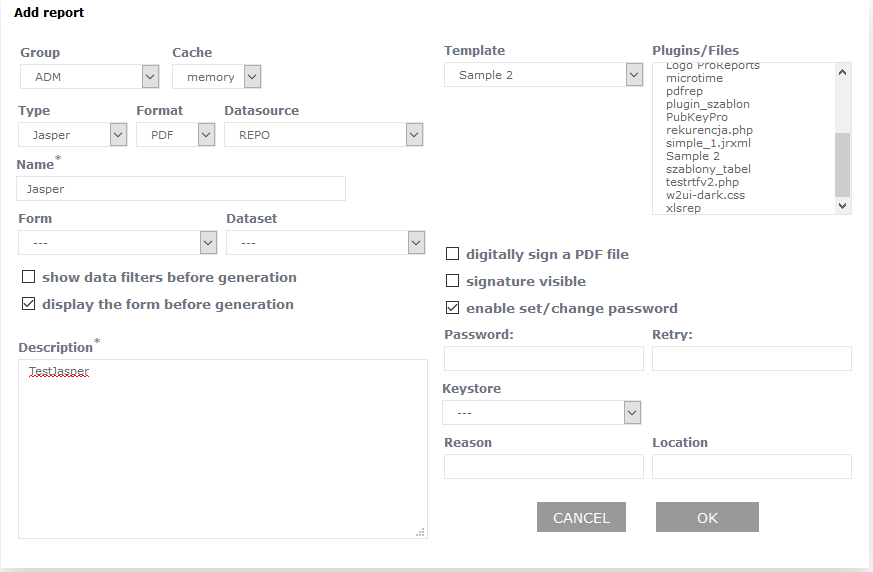 When registering report of type Jasper you have to enter:
If report format was set to PDF then you can check option sign digital PDF file to sign generated report. You can also set linking with set of data (here you can know more about data sets). Registering report of type InternalTo register a report of type Internal you can use option Reports->Add report or using button New report in option Reports->List of reports Choosing one of mentioned option will bring up form to register report: 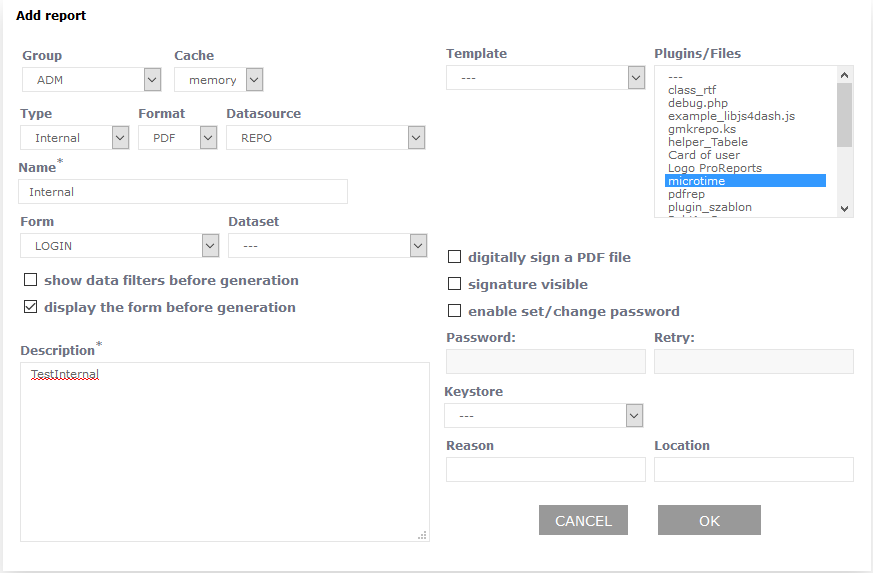 When registering Internal report you have to specify:
If report format was set to PDF then you can check option sign digital PDF file to sign generated report. You can also set linking with set of data (here you can know more about data sets). Registering elements of type InternalAfter registering a report you can start registering it's elements (here you can find more info or report elements). From menu you have to select Elements option 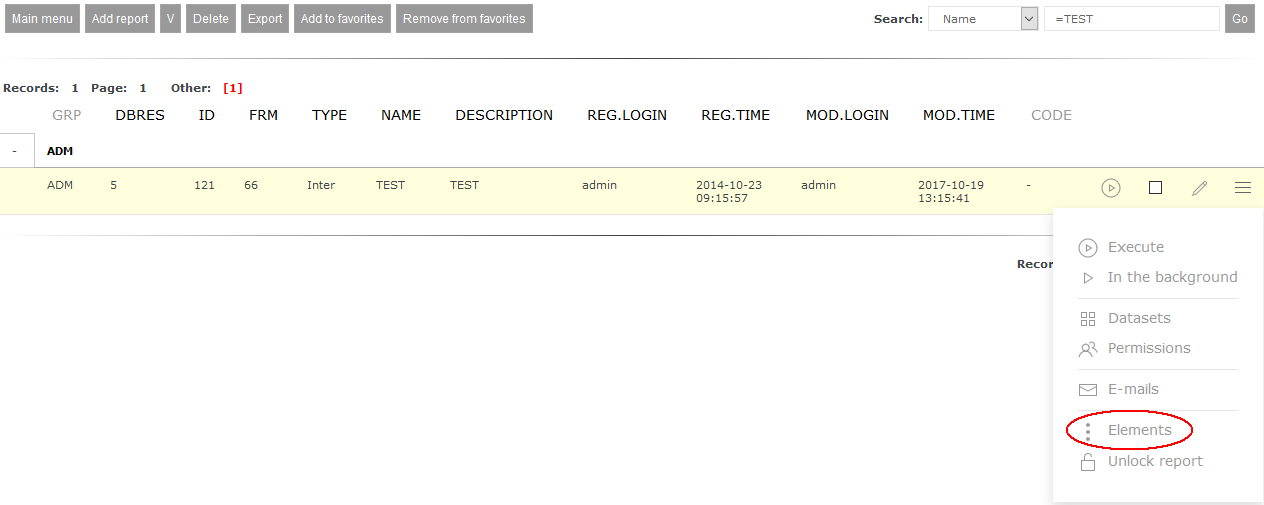 which will cause moving to view of elements defined for certain report (for new report this list will be empty):  Using New report element will bring up form to register element: 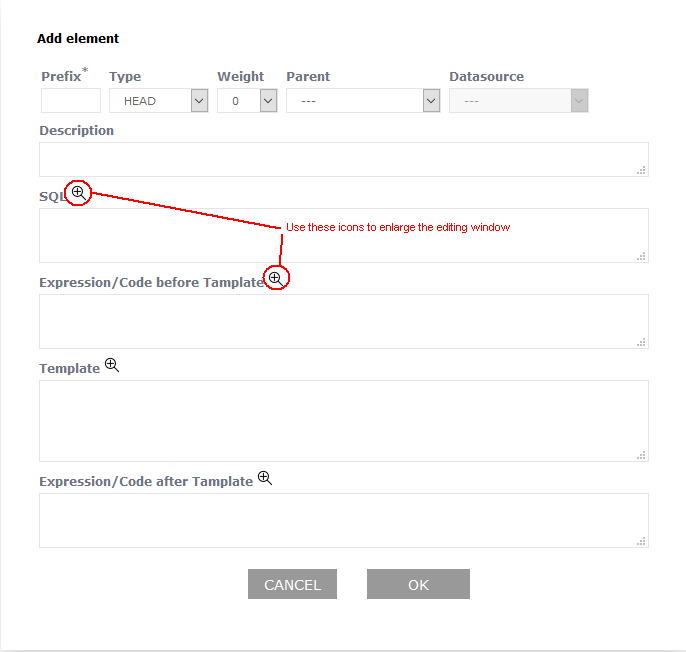 where you have to fill following sections (fields) (here you can learn more about it):
While filling fields you can use 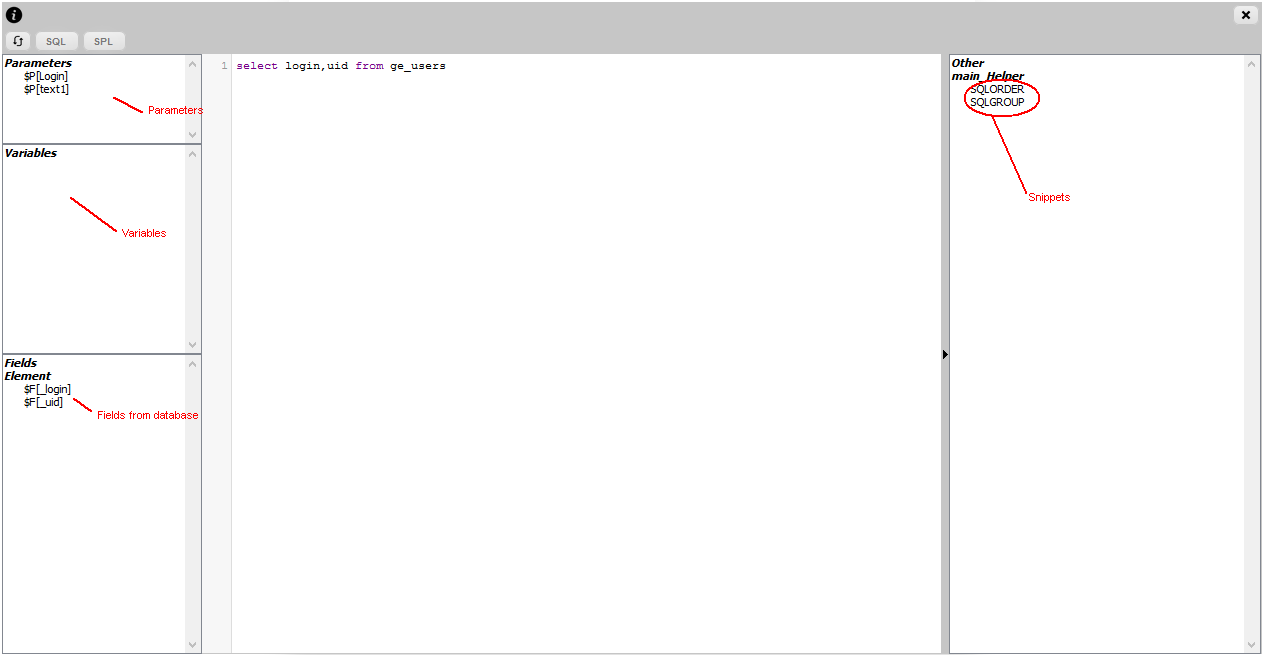 In this window you can use predefined snippets and snippets/helpers available in plugins linked with report. How to create your own snippets/helpers you can read here. After registering elements on a list they are displayed accodring to fixed hierarchy that has influence on order of processing elements when generating report (here you can read more on it): 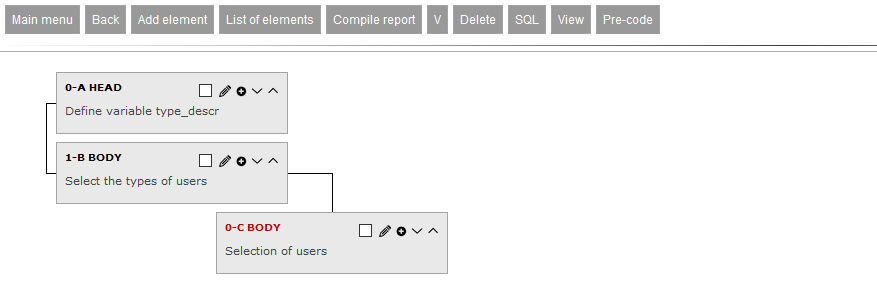 This page may have a more recent version on pmwiki.org: PmWiki:DefRep, and a talk page: PmWiki:DefRep-Talk. |
 icon to expand edit window: