
Respect my work! or BTC: 1MTFbBSKrocPK7G6GKfG8RoTw5N57WnnNa  If you have paid donate send me e-mail with Your data or transaction number to receive an access code to articles with limited access. |
PmWiki /
Registering data sourceShortcut tableProReports system mainly supports two data sources:
Registering JDBC data sourceTo register JDBC data source you can use following option: Resources->Add datasource in option: Resources->List of datasources:  Selecting one of two possible option leads to displaying form in which you have to determine:
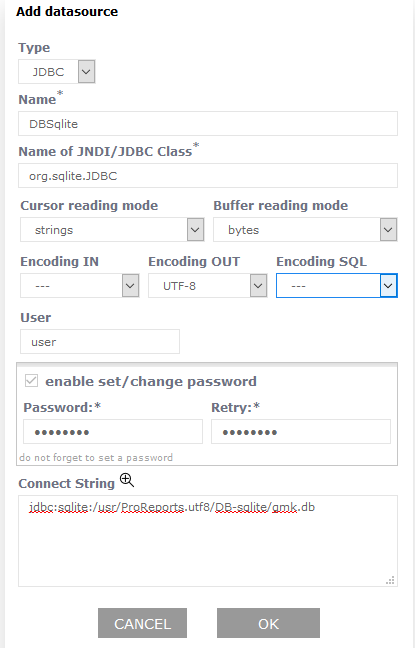 After registering new data source you can check correctness of connection using option Test: 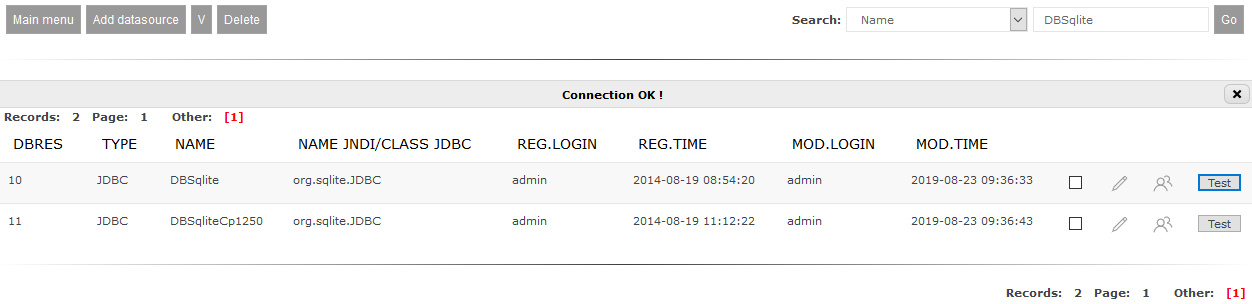 If everything works fine message Connection OK will be shown. Otherwise different message may appear that will inform you about error, e.g.: 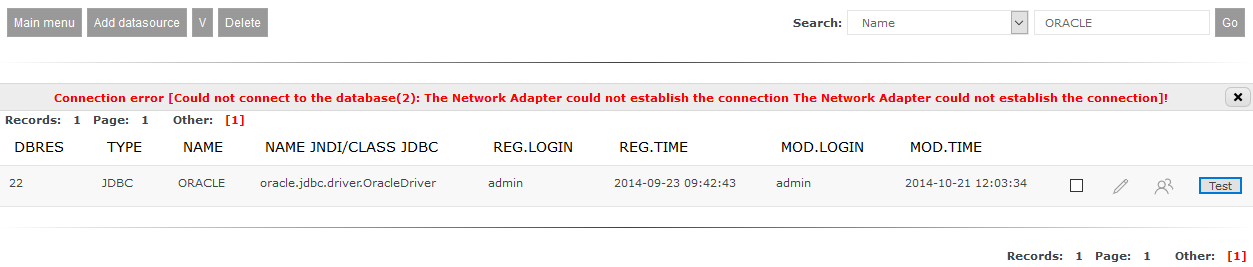 In that case you have to check where all values have been set. Important!
If given database type isn't supported by Proreports then in directory: <ProReports server directory>/JRE/<JVM directory>/lib/ext add JDBC driver file and restart ProReports server Registering JNDI data sourceRegistering JNDI data source is divided into 3 steps:
<server_directory>/etc/jetty.xml
<server_directory>/webapps-plus/rep/WEB-INF/web.xml
<server_directory>/webapps-plus/utf/WEB-INF/web.xml
Important!
After making changes in *.xml files registering new JNDI data source requires restart of ProReports server. Registering in file jetty.xmlAt the end of the file (but before </Configure>) you have to add section: <New id="DBNAME" class="org.mortbay.jetty.plus.naming.Resource"> <Arg>jdbc/DBNAME</Arg> <Arg> <New class="com.mchange.v2.c3p0.ComboPooledDataSource"> <Set name="driverClass">CLASSJDBC</Set> <Set name="jdbcUrl">CONNECTSTRING</Set> <Set name="user">USER</Set> <Set name="password">HASLO</Set> <Set name="minPoolSize">0</Set> <Set name="maxPoolSize">15</Set> <Set name="maxIdleTime">120</Set> <Set name="checkoutTimeout">20000</Set> </New> </Arg> </New> where values DBNAME, CLASSJDBC, CONNECTSTRING, USER and HASLO have to be replaced with correct values for defined database. Examople (for INFORMIX database): <New id="DBprod" class="org.mortbay.jetty.plus.naming.Resource"> <Arg>jdbc/DBprod</Arg> <Arg> <New class="com.mchange.v2.c3p0.ComboPooledDataSource"> <Set name="driverClass">com.informix.jdbc.IfxDriver</Set> <Set name="jdbcUrl">jdbc:informix-sqli://192.168.1.5:9012/base_production:informixserver=on1_prd1; DBDATE=Y4MD-;IFX_LOCK_MODE_WAIT=10;CLIENT_LOCALE=pl_PL.8859-2;DB_LOCALE=pl_PL.8859-2;</Set> <Set name="user">test</Set> <Set name="password">test123</Set> <Set name="minPoolSize">0</Set> <Set name="maxPoolSize">15</Set> <Set name="maxIdleTime">120</Set> <Set name="checkoutTimeout">20000</Set> </New> </Arg> </New> Registering in file web.xmlIn files: <server_directory>/webapps-plus/rep/WEB-INF/web.xml <server_directory>/webapps-plus/utf/WEB-INF/web.xml needs to be registered another section named resource-ref: <resource-ref> <res-ref-name>jdbc/DBNAME</res-ref-name> <res-type>javax.sql.DataSource</res-type> <res-auth>Container</res-auth> <res-sharing-scope>Shareable</res-sharing-scope> </resource-ref> where value DBNAME has to be correlated with value from file jetty.xml Example: <resource-ref> <res-ref-name>jdbc/DBprod</res-ref-name> <res-type>javax.sql.DataSource</res-type> <res-auth>Container</res-auth> <res-sharing-scope>Shareable</res-sharing-scope> </resource-ref> Registering in ProReports databaseImportant!
After modifying *.xml files registering new JNDI source requires restart ProReports server. After modifying *.xml files and restarting ProReports server you have to register JNDI source in system database. This can be achieved using the same path as with registering JDBC source - meaning Resources->Add data source or key New data source in Resources->Data source list: While registering JNDI source we have to basically enter 3 values:
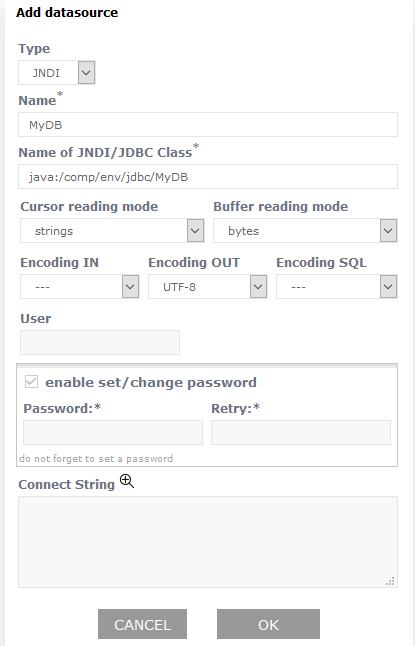 Remaining fields are not enabled and therefore they don't need to be filled. Similar to JDBC data source you can perform connection check (click here to see how to do that). Other data sourcesWeb ServicesData filesThis page may have a more recent version on pmwiki.org: PmWiki:AddSourceRej, and a talk page: PmWiki:AddSourceRej-Talk. |